

Weglot Integration with Rivyo Reviews
Translate Rivyo reviews with Weglot
By integrating Weglot with Rivyo Product Reviews, you can automatically translate your store content, including customer reviews, into multiple languages. This helps you create a more localized shopping experience and build trust with shoppers around the world.
Why use Weglot with Rivyo?
Weglot helps you make your Shopify store multilingual with automatic and editable translations in 100+ languages. When used with Rivyo, it can also translate the reviews and ratings shown on your storefront.
Translate product reviews and ratings automatically
Create a better shopping experience for international visitors
Support multilingual SEO with translated pages
Help customers read reviews in their preferred language
Weglot translates visible storefront content. If your Rivyo reviews are displayed on the product page, Weglot can usually detect and translate them automatically.
How the integration works
After you install and activate Weglot on your Shopify store, it scans the content shown on your storefront and creates translated versions for your selected languages.
For Rivyo reviews, Weglot typically:
Detects visible review text and rating content on the page
Translates that content automatically
Shows the translated version when shoppers switch languages
Lets you manually adjust translations from your Weglot dashboard if needed
Weglot also creates language-specific URLs and adds hreflang tags, which can help search engines understand your multilingual pages.
Set up Weglot with Rivyo
In your Shopify admin, go to Apps and open the Shopify App Store.
Search for Weglot, then click Add app to install it.
Open Weglot from your Shopify apps.
Then sign up for a new account or log in to your existing Weglot account to continue setup.
Select your store's original language.
Then choose the language or languages you want to translate your store into. Weglot will begin scanning and translating your storefront content.
Follow the prompts in Weglot to enable the integration in your theme. Save your changes and confirm activation so the language switcher appears on your storefront.
Add Rivyo class to Dynamic elements
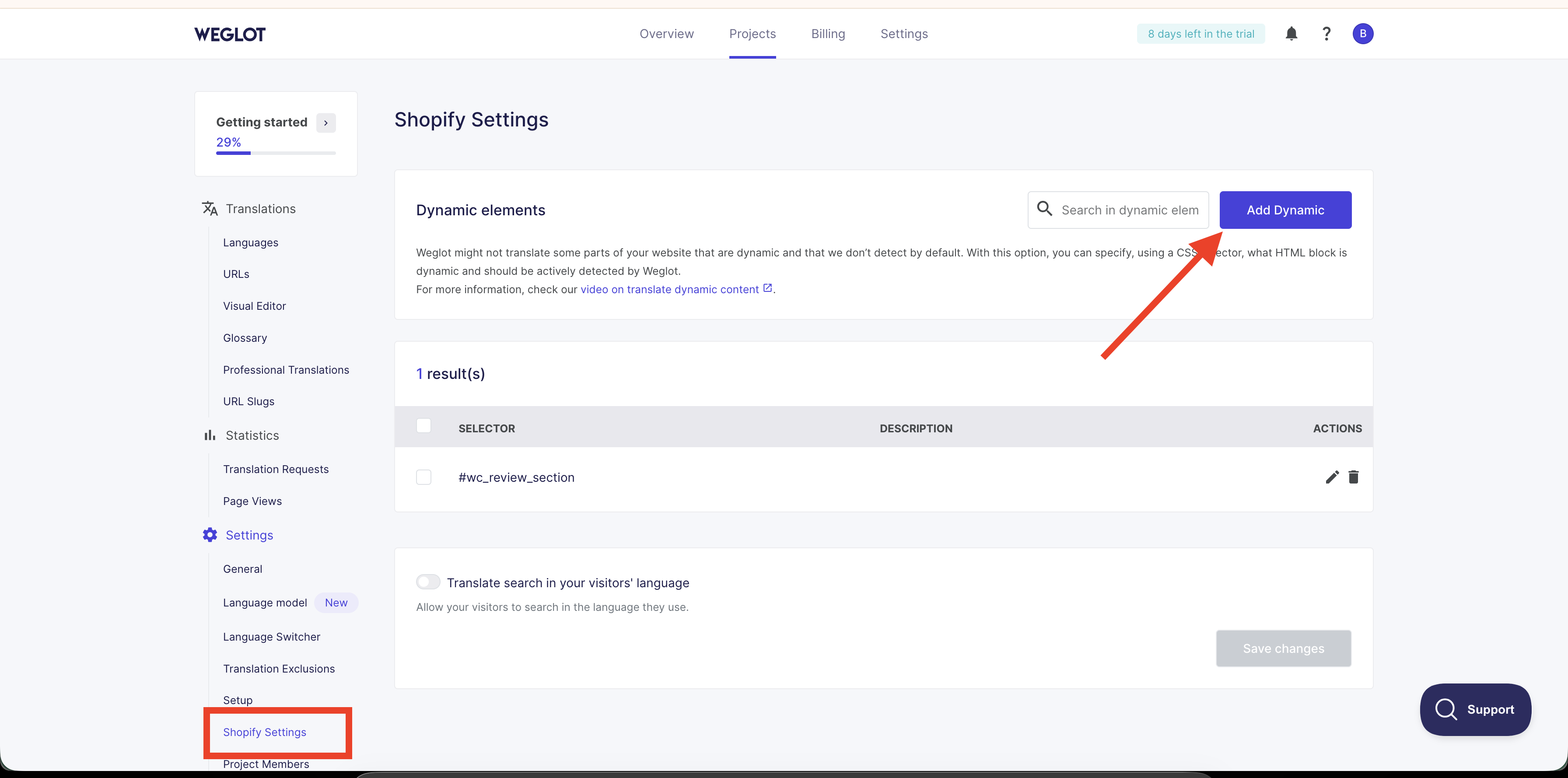
In Weglot, go to Shopify Settings → Dynamic elements and click Add Dynamic.
Then, enter the Rivyo review container class (e.g., .wc_review_section) and save.
This ensures that all Rivyo reviews and ratings—especially dynamically loaded content—are properly detected and translated across all languages.
Setup Weglot API key
In your Weglot Project settings, enter the “Setup” sub-menu.
Copy your project’s API key under “API Key”
In the Rivyo app's "Settings - Integrations" menu, go to "Weglot" and click "Manage".
Insert your Weglot API key and click "Verify".
Verify Rivyo review translation
Visit your product page → Switch languages using the language selector → Rivyo reviews and ratings will appear translated automatically.
How to verify that reviews are translating correctly
Open a live product page with published Rivyo reviews
Switch to one of your translated languages
Check the review title, review body, and any visible rating text
Repeat this on a few different products to confirm the translation appears consistently
If a review does not look natural after automatic translation, you can edit that translation manually in Weglot for a more polished result.
Best practices
Make sure Rivyo reviews are visible on the storefront, not hidden behind unpublished theme changes
Test on both desktop and mobile views after activating Weglot
Review important product pages manually to ensure translated reviews read clearly
Keep your language selector easy to find so shoppers can switch languages quickly
Troubleshooting
First, confirm that Rivyo reviews are visible on the live product page.
If the reviews appear on the page but are not translating, recheck your Weglot setup and make sure the target language is enabled.
You should also test after clearing any storefront cache and refreshing the page in a different language. learn more
This can happen if some parts of the review block load differently from the rest of the page.
Check multiple product pages and review the translated output in Weglot. In many cases, visible text can still be adjusted manually from the Weglot dashboard.
Make sure Weglot was fully activated in your Shopify theme and that your changes were saved.
If needed, reopen Weglot from Shopify and repeat the activation step.
What to expect after setup
Once Weglot is active, shoppers can browse your store in their selected language and read Rivyo reviews without leaving the page. This can help international customers better understand product quality and feel more confident before purchasing.
Translation quality may vary depending on the original review language and writing style. For important storefront content, reviewing translations manually is recommended.